
arduino_bt_pcs
Updated Nov 6, 2025 · v2.2.0


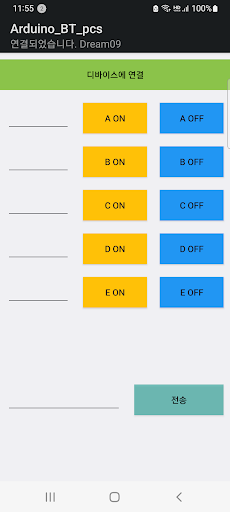
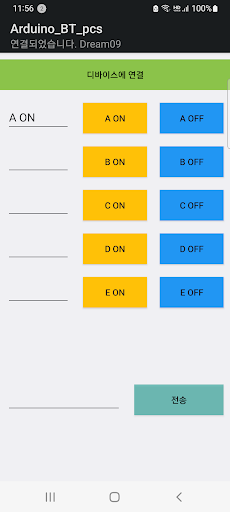

Arduino Bluetooth UI
Mount the Bluetooth module on the Arduino board, connect the Bluetooth communication between the mobile phone and the Arduino by operating this app on the mobile phone, and then press various buttons provided in the mobile phone to recognize the button presses on the Arduino and perform the desired operation. app that lets you - Single button: 10 (2 each can be combined in pairs to control 5 types of ON/OFF states) - Number and alphabet input window and send button to send it to Arduino (Available for speed control with numbers, etc. Strings and numeric strings available) (Data transmitted to Arduino when each button is pressed) A ON button: a. A OFF button: A. B ON button: b. B OFF button: B. C ON button: c. C OFF button: C. D ON button : d. D OFF button : D. E ON button: e. E OFF button: E. Send button: Added . to the character/numeric string entered on the left * The . added at the end is treated as the end of transmission in the Arduino program. (Program example in Arduino) The LED connected to the digital port 5 of the Arduino flickers with the A ON and A OFF buttons. Include SoftwareSerial.h at the beginning. SoftwareSerial BT(2, 3); // Arduino D2 (RX) is connected to pin 2 (TX) of the Bluetooth module, // Arduino D3 (TX) is connected to pin 1 (RX) of the Bluetooth module char inData[10]; int led1 = 5; int i=0; void setup() { Serial.begin(9600); // for uno 9600 BT.begin (9600); // for uno 9600 for(int i=0; i<5; i++){ pinMode(5+i, OUTPUT); digitalWrite(5+i, LOW); } } void loop() { while (BT.available() > 0) { char recieved = BT.read(); // read 1 byte inData[i++] = recieved; if (received == '.') { Serial.print(inData); inData[i] = '\0'; // Clear recieved buffer i = 0; } } // LED1 on/off if(strcmp(inData,"a.")==0) { digitalWrite(led1, HIGH); } if(strcmp(inData,"A.")==0) { digitalWrite(led1, LOW); } }
3 years on Google Play
This app isn't currently appearing in any tracked top charts.