
TV Cast & Screen Mirroring
Updated Aug 24, 2026 · v1.1.10

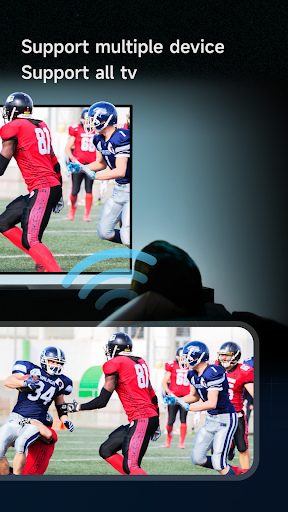


Cast Videos & Photos, Mirror Your Screen to Roku, Chromecast & Smart TV
Full description Use TV Cast & Screen Mirroring to mirror your phone screen to a compatible TV and cast media files to your TV. You can use this app for screen mirroring and to cast videos, photos, and music saved on your phone. Connect your phone and TV to the same Wi-Fi network, search for supported devices, then choose screen mirroring or media casting. The app is intended for compatible Roku, Chromecast, Google Cast, and Android TV devices, as well as selected Samsung, LG, Sony, TCL, Hisense, and Vizio smart TVs and DLNA/UPnP receivers. Available features may vary by device. ✨ Key features 📱 Screen mirroring Mirror your phone screen to a compatible TV or streaming device. Display apps, photos, presentations, lessons, fitness content, and other phone content on a larger screen. 📂 Cast files to TV Choose videos, photos, or music saved on your phone and cast them to a compatible TV. Supported media formats may vary by the TV or receiver. 🎬 Video casting Cast local videos from your phone to Roku, Chromecast, smart TVs, and other supported devices. Playback may depend on the file format, network connection, and receiving device. 🖼️ Photo casting Display photos and images from your phone on a TV for viewing albums, sharing pictures, or presenting visual content. 🎵 Music casting Cast music files from your phone when the TV or streaming device supports the relevant audio format. 📡 Compatible devices • Roku and Roku TV • Chromecast and Google Cast devices • Android TV • Selected Samsung, LG, and Sony smart TVs • Selected TCL, Hisense, and Vizio smart TVs • DLNA/UPnP receivers • Other supported streaming devices 🔍 Find devices Search for TVs and streaming devices connected to the same Wi-Fi network as your phone. Some devices may require connection confirmation, setting changes, or network permissions. 📋 How to use 1.Connect your phone and TV or streaming device to the same Wi-Fi network. 2.Open TV Cast & Screen Mirroring and allow access to the local network or nearby devices. 3.Search for and select a compatible device. 4.Select Screen Mirroring to display your phone screen on the TV. 5.To cast files, choose a video, photo, or music file in the app. ℹ️ Compatibility Compatibility may depend on the TV or streaming device model, firmware version, available protocols, and network configuration. Screen mirroring quality, resolution, and latency may vary by phone, TV, and Wi-Fi connection. Some devices may not support audio during screen mirroring. Video, image, and audio format support may differ between TVs and receivers. Some protected or DRM-restricted content may not be available for casting or screen mirroring. Features available on Roku, Chromecast, smart TVs, and DLNA/UPnP receivers may vary by model. ⚠️ Disclaimer TV Cast & Screen Mirroring is independently developed and is not affiliated with, authorized by, endorsed by, or sponsored by Roku, Google, Chromecast, Samsung, LG, Sony, TCL, Hisense, Vizio, or other manufacturers mentioned in this description. All product names, brands, and trademarks belong to their respective owners. 📥 Download TV Cast & Screen Mirroring Mirror your phone screen to supported devices and cast videos, photos, and music from your phone to your TV.
0 years on Google Play
This app isn't currently appearing in any tracked top charts.